
What if your LinkedIn profile reflected how you actually build software instead of just being a list of your skills? That’s what the LinkedIn Connected Apps plugin does: It tracks how you use your JetBrains IDE, awards you a level ranking, and provides a descriptive statement associated with your level that you can choose to share.
Since the first version came out, you’ve told us what works and what doesn’t. The level system wasn’t entirely clear and you wanted a plain explanation of what happens to your data.
Version 1.2 is built around that feedback. It introduces four levels based on real work that gets done in the IDE, a widget that shows your progress and what’s next, and a clear account of what stays on your machine.
What’s new in 1.2
Levels based on how you use your IDE
The leveling path now has four levels instead of five, and each one reflects what developers do in their IDE on a day-to-day basis. There are two distinct branches, Coding and AI, with the AI branch starting at Level 3. Because everyone starts at Level 1, you must progress through the first two levels on the Coding branch before starting on the AI branch. The branches are independent, so your Coding level and AI level can be different.
Imagine this progression, for example. Shortly after getting started with your IDE, you use code completion and reach Level 1. You continue using core functionality more broadly, searching for code throughout the project, so the next day you reach Level 2. You then start refactoring and using Git, so you reach Level 3 in Coding. Later you start working on tasks via AI chat, bringing you to Level 3 in AI. Eventually you start running AI agents and reviewing their changes, so you reach Level 4 in AI, even while you’re still at Level 3 on the Coding side. Your profile shows the level you’ve reached on each branch.
| Level | Coding | AI |
|---|---|---|
| 1 | Use a core IDE capability, for example, search, code completion, or code navigation. | – |
| 2 | Search for code across the project, type with code completion, or navigate to declarations or usages. | – |
| 3 | Refactor by renaming or moving elements, run commands in the terminal, run your application or configurations, or use Git through the UI (commit, fetch, or update). | Work on coding tasks with AI to generate and explain code, run AI agents (such as Junie, Claude, or Codex) in the integrated terminal, or complete tasks using JetBrains Air. |
| 4 | Debug with the integrated debugger (Step Over, Step Into, Evaluate Expression), work with editor shortcuts, apply advanced refactorings (Extract and Introduce), and use the Git Log and Diff view. | Use AI agents to generate, refactor, and explain code. Orchestrate agents or run tasks through the integrated terminal or JetBrains Air, then review their changes in the Diff view. |
For more information about how levels are calculated in a particular IDE, check out the help center for IntelliJ IDEA, PyCharm, WebStorm, PhpStorm, Rider, GoLand, CLion, RustRover, or RubyMine.
Always know what’s next
A widget shows your current level and the statement that goes with it, and explains what you’ll need to do to reach the next one. Each requirement has a progress counter and is marked with a check once completed, allowing you to track your progress at a glance and always have a clear view of what remains to be done.
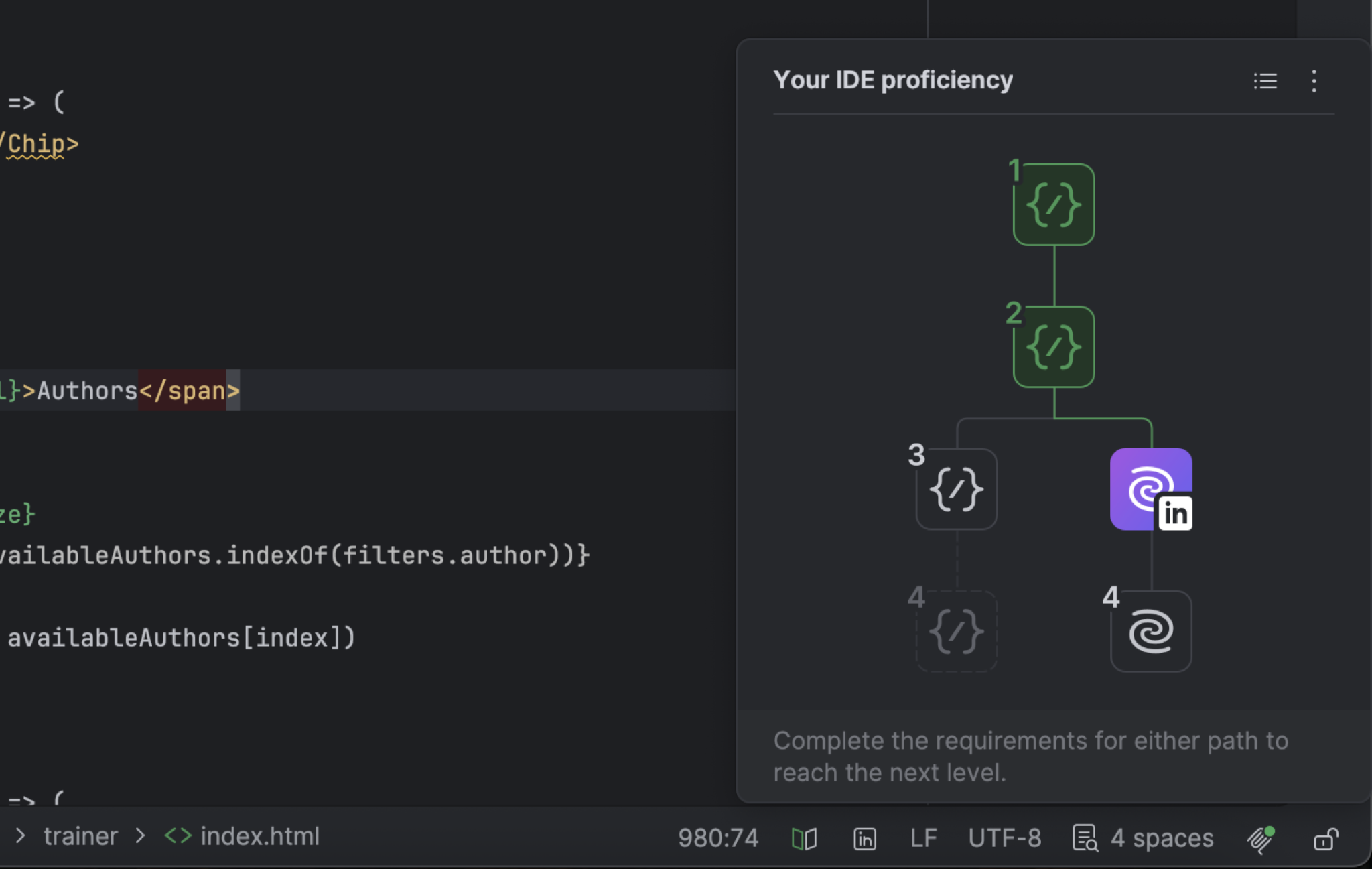
For the bigger picture, switch to the tree view. It shows every level at once, including where the Coding and AI branches split at Level 3. It also marks which levels you’ve completed, which one you’re on, and which ones are still ahead. Click on any level to see exactly what it requires.
Privacy and your data
In response to your questions, here are some important details about how the plugin uses your data:
- When you do something that counts toward a level, the plugin records it locally. This usage data stays on your computer and is not shared with LinkedIn. The plugin doesn’t change your IDE data sharing settings.
- After you connect your LinkedIn account and reach a new level, the IDE sends only the corresponding statement.
- You connect through LinkedIn’s own OAuth 2.0 page in your browser. The plugin never sees or stores your LinkedIn password. It receives only an access token and a refresh token, which it keeps in the IDE’s secure credential store.
- That token lets the plugin do one thing: add and update your JetBrains IDE statement in the Connected Apps section of your profile. The plugin doesn’t read any other part of your profile.
- You can end the connection at any time. Simply click Disconnect from LinkedIn in the plugin, and revoke the app’s access from your LinkedIn settings under Data privacy | Permitted services.
If you already have a statement on your profile
The statements you’ve already achieved stay as they are. Once you earn a new statement, the statement on your LinkedIn profile will also be updated.
How your existing progress carries over
If you were already using the first version of the plugin, your existing progress should generally carry over to the new four-level scheme. Here’s how the levels have changed:
- Level 1 and Level 2 are unchanged.
- The old Level 3 is now split into Level 3 Coding and Level 3 AI.
- The old Level 4 is now split into Level 4 Coding and Level 4 AI.
- The old Level 5 has been removed, and the activities associated with it have been merged into Level 4 of Coding and AI.
Your previously achieved levels will be mapped to the corresponding levels in the new scheme based on your recorded activity. In some cases, particularly when switching devices or IDEs, certain progress may not carry over completely.
How to get started
- In your IDE, go to Settings | Plugins.
- On the Marketplace tab, search for “LinkedIn Connected Apps” and click Install, or Update if you already have it.
- Click the Your IDE Proficiency widget in the lower right corner to see your level and next steps.
- When you’re ready to share your statement, click Connect to LinkedIn and follow the instructions in your browser.
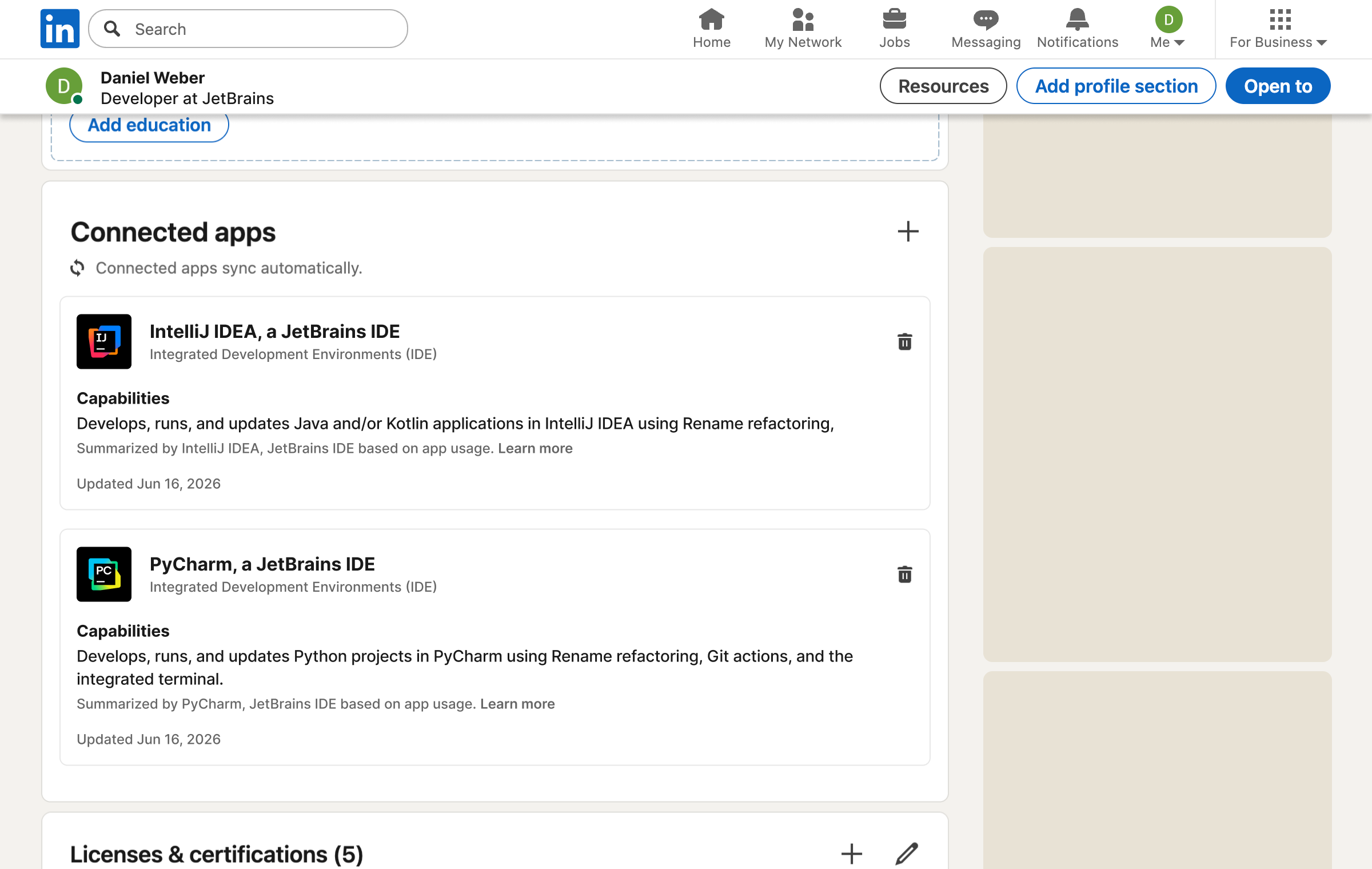
The plugin is free and supports IntelliJ IDEA, PyCharm, WebStorm, PhpStorm, Rider, GoLand, CLion, RustRover, and RubyMine, version 2025.3 or later. DataGrip isn’t supported. For the full list of level requirements, see the documentation.
Open the widget, see where you are, and let us know what you think in the comments.
FAQ
Is this a certification?
This plugin reflects how you use your IDE and doesn’t measure your skills as a developer. It is not a certification.
Do I have to share my level on LinkedIn?
Connecting to LinkedIn is totally optional. Until you connect, your level is stored only on your machine.
What data is shared with LinkedIn and JetBrains?
Your feature usage is tracked locally and isn’t shared with LinkedIn. After you connect, only your statement ID is sent when you reach a new level. The plugin doesn’t change your existing IDE data sharing settings, so no new data will be shared with JetBrains.
Do I need to keep the plugin installed after connecting?
Yes, if you want your progress to keep updating on LinkedIn. You can also share your level once and remove the plugin.
Can I connect multiple IDEs?
Yes. Each connected IDE gets its own statement on your profile.
Is the plugin free?
Yes, the plugin is free and works in IntelliJ IDEA, PyCharm, WebStorm, PhpStorm, Rider, GoLand, CLion, RustRover, and RubyMine, version 2025.3 or later. DataGrip isn’t supported. For the full list of level requirements, see the documentation.